


Python can be useful for tools and automation around some multiplayer communities, but the languages and extension systems depend on the game and server platform. It should not be treated as a universal shortcut for changing gameplay or moderation.
For Minecraft specifically, common server platforms and plugins are primarily Java-based. Python can still be useful for external tools, data processing, bots, or automation around a community, but players should check a server’s stated version, modpack, rules, and game mode rather than expecting Python alone to define its gameplay.
Picture this: when searching through a Minecraft server list you’ll find hundreds that feel nearly identical. Python scripting changes that. It gives you the power to stand out by building features that reflect your community’s personality and playstyle.
The beauty of Python for server customization lies in its straightforward syntax and massive library ecosystem. Unlike compiled languages that require complex build processes, Python scripts can be written, tested, and deployed in minutes. You write a few lines of code, restart the server, and immediately see your changes in action. This quick feedback loop makes learning feel rewarding rather than frustrating.
Most beginners worry they need years of programming experience to start customizing servers. The truth is simpler. If you can follow a recipe or assemble furniture from instructions, you can write Python scripts. The language reads almost like plain English, and the game server communities have built incredible resources to help newcomers get started.
This tutorial walks you through the entire process, from installing Python and choosing the right server framework to writing your first custom command and testing it with real players. You’ll learn the practical skills that turn a generic server into a memorable gaming destination. Whether you want to add custom minigames, automate routine admin tasks, or build entirely new gameplay mechanics, Python puts these possibilities within reach.
What You’ll Need to Get Started
Before you start writing Python scripts for your game server, gather these essential tools. Having everything ready makes the learning process smoother and helps you avoid frustrating interruptions mid-tutorial.
- Python 3.10 or later: The scripting language itself, which you’ll download from for free
- A text editor or IDE: VS Code, PyCharm Community Edition, or Python’s built-in IDLE for writing and organizing your code
- A compatible game server: Minecraft with plugin support, a custom game server, or a hosting platform that allows Python scripts
- Command line access: Basic familiarity with terminal commands to install packages and run scripts
- A test environment: A separate server or local instance where you can experiment without affecting live players
Python 3.10 or newer brings performance improvements and clearer error messages that help beginners debug their code faster. The version matters because older releases lack certain features modern server plugins expect.
Your choice of editor affects how quickly you can spot mistakes. VS Code offers excellent extensions for Python development and server management, while PyCharm provides powerful debugging tools. IDLE works fine for simple scripts if you’re just starting out and don’t want to install additional software.
The test environment is non-negotiable. Running untested scripts on a live server with active players risks crashes, data loss, or broken gameplay. Set up a private copy of your server on your local machine or rent a small secondary instance specifically for development. This safety net lets you break things, learn from errors, and refine your code before deployment.
If you’re building a gaming community around your custom server, you might want to set up a WordPress site to share updates, post tutorials, and recruit players. Many successful server communities use WordPress hosting to create central hubs that complement their in-game experience.
Important Safety Warnings and Best Practices

Before you start writing scripts, let’s talk about staying safe and protecting your server. These aren’t bureaucratic hurdles, they’re practical safeguards that prevent disasters and keep your gaming community happy.
The most common beginner mistake is editing scripts directly on a live server with active players. One syntax error can crash the entire server mid-game, frustrating your community and potentially corrupting save data. Set up a local test environment or a separate staging server where you can break things safely. Run your script through multiple scenarios, deliberately try to cause problems, and only move to production when everything works smoothly.
Never run code from unknown sources without reading and understanding every line. A malicious script can delete files, steal player credentials, or give unauthorized users admin access. If you find a script online that looks useful, review it carefully and test it thoroughly before implementation.
Player data deserves special attention. Many regions have strict privacy requirements, and your players trust you with their information. Store only what you genuinely need, implement encryption at every touchpoint and set file permissions so only authorized administrators can access sensitive data. A compromised server can destroy your community’s trust overnight.
Watch for infinite loops in your code, particularly in event handlers that trigger repeatedly. A script that checks player positions every millisecond can consume all server resources and crash everything. Use reasonable delays and test resource usage before deploying.
Back up your server files before every script change. Seriously, every single time. A simple backup takes two minutes and can save hours of recovery work if something goes wrong. Most hosting platforms offer automated backup systems, so enable them and verify they’re running correctly.
Step-by-Step: Creating Your First Server Script
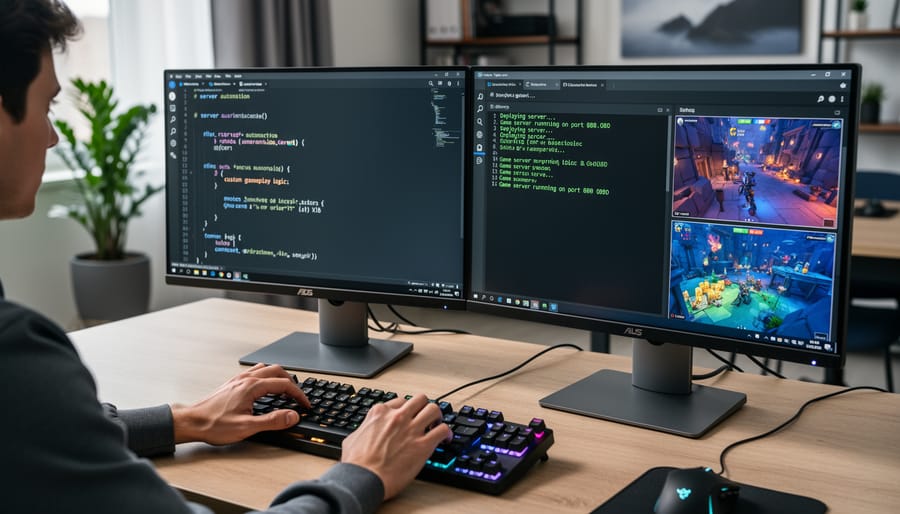
Step 1: Set Up Your Python Environment
Download Python 3.10 or later from by clicking the big yellow download button for your operating system. Run the installer and check the box that says “Add Python to PATH” before clicking install. This step matters because it lets you run Python from anywhere on your computer.
Open your command prompt (Windows) or terminal (Mac/Linux) and type `python –version` then press enter. You should see something like “Python 3.12.1” confirming the installation worked. If you get an error, restart your computer and try again.
Next, pick a code editor. VS Code is free and beginner-friendly. Download it from, install it, then add the Python extension by clicking the extensions icon on the left sidebar and searching for “Python.”
Create a folder on your desktop called “server-scripts” to keep your projects organized. Right-click inside this folder and select “Open with Code” to start working in VS Code. You now have everything ready to write your first script.
Step 2: Connect to Your Server’s API or Plugin System
Establishing a connection between your Python script and the game server is where your code comes alive. Most multiplayer servers expose their functionality through either a plugin API or a network protocol that Python can interact with.
Start by locating your server’s documentation. For Minecraft servers running Spigot or Paper, check the official plugin API documentation on their websites. PocketMine servers have Python libraries like PocketMine-Python. Custom servers often include README files or developer wikis that explain how scripts communicate with the game engine.
The connection method depends on your server type. Plugin-based systems usually require you to place your script in a specific directory (often called “plugins” or “scripts”) and import the server’s Python library at the top of your file. Network-based connections use socket programming to send commands over or a specific port.
Here’s a simple connection test for a typical plugin system:
“`python
from server_api import connect
server = connect()
if _connected():
print(“Connection successful!”)
else:
print(“Connection failed. Check your configuration.”)
“`
Run this script from your command line. A successful connection confirms your environment is properly configured. If it fails, verify that your server is running, the API library is installed, and file permissions allow script execution. Check the server console for error messages, they often point directly to what needs fixing.
Step 3: Write a Basic Welcome Message Script
Open your text editor and create a new file called “. This script will run automatically whenever a player joins your server, displaying a personalized greeting.
Start with these lines:
“`
from server_api import player_events
def welcome_player(player):
message = “Welcome to the server!”
player.send_message(message)
player_events.on_join(welcome_player)
“`
Let’s break down what each part does. The first line imports the connection to your server’s event system, this is how your script “listens” for things happening in the game. The `def welcome_player(player):` line creates a function, which is simply a reusable block of code with a name. Think of it as a recipe your server follows when triggered.
Inside the function, `message = “Welcome to the server!”` creates a variable, a container that holds your greeting text. You can change this to anything you want. The next line, `player.send_message(message)`, takes that greeting and sends it to the player who just joined.
The final line connects everything together. It tells the server: “Whenever someone joins, run the welcome_player function.” Save this file in your project folder. You’ve just written a script that responds to player actions, the foundation of all advanced server customization.
Step 4: Add Player-Specific Customization
Now that you’ve got a basic welcome message working, let’s make it recognize who’s actually joining. This is where Python scripting transforms from simple automation into personalized player experiences.
Modify your script to capture the player’s username when they connect. Most server APIs pass this as a variable like “ or `event.player_name`. Store this in a variable at the top of your join function:
“`python
player_name = player.get_name()
“`
Now use that variable in your message with string formatting. Replace your generic message with something like `f”Welcome back, {player_name}! Ready for another adventure?”` The curly braces tell Python to insert the actual player name.
Here’s where it gets interesting: you can add conditional logic to treat different players differently. Use an `if` statement to check the player name:
“`python
if player_name == “AlexTheGreat”:
send_message(“Welcome, server admin!”)
elif player.get_join_count() > 10:
send_message(f”Great to see you again, {player_name}!”)
else:
send_message(f”Welcome for the first time, {player_name}!”)
“`
This conditional structure unlocks countless possibilities. You could grant special items to loyal players, trigger custom events for specific usernames, or create rank systems based on play time. Save your changes and prepare to deploy this enhanced version.
Step 5: Deploy Your Script to the Live Server
Your script works perfectly in testing, now it’s time to move it to the live server where real players will experience it. This deployment process requires careful attention to avoid disrupting active gameplay.
First, locate your server’s script directory. Most multiplayer servers store Python scripts in a designated folder like `/plugins/scripts/`, `/mods/python/`, or `/server/custom/`. Check your server’s documentation or control panel to confirm the exact path. If you’re using a hosting service, you’ll typically access this through FTP, SFTP, or a web-based file manager.
Before uploading anything, make a complete backup of your current server configuration. Copy the entire scripts folder to a safe location on your computer or use your hosting provider’s backup feature. This safety net means you can restore everything instantly if something goes wrong.
Now upload your script file to the correct directory using your chosen method. Ensure the filename matches any references in your server’s configuration files. Once uploaded, verify the file permissions are set correctly, most servers need read and execute permissions (typically 755 on Linux systems).
Follow this deployment checklist ensuring safe implementation:
- Announce to players that the server will restart briefly for updates
- Save the current game state if your server software supports it
- Stop the server using the proper shutdown command rather than forcing it
- Upload your script file to the designated directory
- Double-check the file is in the right location with correct permissions
- Start the server and watch the console output for errors
- Join as a player to test the script’s functionality firsthand
Watch your server console carefully during startup. Look for confirmation messages that your script loaded successfully. Most servers will display something like “Loaded custom script: welcome_message.py” or similar. If you see error messages instead, don’t panic, stop the server, review the error details, and check for common issues like typos in the filename or incorrect directory placement.
How to Verify Your Script Is Working Correctly

After deploying your script, verification is crucial to confirm everything’s running smoothly. Start by checking your server logs, most game servers store logs in a “logs” folder within the server directory. Look for your script’s initialization message or any related output. If you included print statements in your code (recommended for testing), they’ll appear here with timestamps.
Next, test with a real player connection. Log into the server yourself or ask a trusted friend to join. Watch for your welcome message or custom behavior to trigger exactly as programmed. If nothing happens, your script might not be loading at all. Check that the file is in the correct directory and that you restarted the server after uploading.
Monitor the logs actively during testing. Errors typically show up as “exception” or “error” messages with line numbers pointing to the problematic code. Python errors are usually descriptive, “NameError” means a variable doesn’t exist, “SyntaxError” indicates a typo or formatting problem. Write these down and search for them in Python documentation or community forums.
- Server logs show script initialization without errors
- Custom messages or behaviors trigger on player actions
- No repeated error messages flooding the log file
- Server performance remains stable (no lag or crashes)
- Player-specific features work for multiple different users
Success looks like clean logs, predictable behavior, and happy players. If something’s off, don’t panic, most issues are simple fixes like incorrect file paths or missing permissions. Just like when you optimize for SEO or configure All in One SEO on WordPress, methodical testing reveals what needs adjustment. Review your code against the tutorial steps, double-check syntax, and verify that all required modules are installed.
Next Steps: Expanding Your Server’s Capabilities
Your welcome message script is running smoothly, and you’ve already proven you can modify server behavior. That foundation opens doors to genuinely powerful customizations.
Custom game modes represent a natural next step. You can write scripts that change core rules when players enter specific zones, rotate different gameplay styles on a schedule, or let players vote to switch modes. These scripts use the same event triggers and conditional logic you practiced, just with more variables tracking game state.
Automated events breathe life into your server without constant manual intervention. Schedule daily challenges, spawn rare enemies at specific times, or trigger seasonal content based on real-world dates. Python’s datetime library makes this straightforward, and your existing script structure adapts easily.
Anti-cheat systems protect your community as it grows. Write scripts that detect impossible movement speeds, track inventory changes for duplication exploits, or flag suspicious behavior patterns for review. Start simple, log unusual activity first, then add automated responses as you understand the patterns.
Player economy management adds depth to long-term engagement. Create currency systems, player-run shops, automated auctions, or reward mechanisms for achievements. These scripts build on your player data storage knowledge and introduce database concepts you’ll use repeatedly.
Dynamic difficulty adjustment keeps gameplay challenging for everyone. Scripts can monitor player performance, adjust enemy strength based on group composition, or scale rewards to match risk. This requires reading game state continuously and making calculated modifications.
For learning resources, the official Python documentation remains essential as you tackle more complex features. Community forums specific to your game often share working script examples. If you want to document your custom features and build a player base, start a WordPress blog showcasing what makes your server unique. Our WordPress for beginners guide walks you through creating a site that complements your gaming community.
Tackle one enhancement at a time. You’ve built the foundation, now expand it piece by piece.
Frequently Asked Questions

Do I need to be an expert programmer to start scripting game servers?
Not at all. You can begin with simple scripts using basic Python concepts like variables, functions, and if-statements. Many server owners start with copying and modifying existing scripts before writing their own from scratch.
Which games support Python scripting for multiplayer servers?
Minecraft (through plugins like PyCraft), Garry’s Mod (with Python extensions), various Source engine games, and many custom indie multiplayer titles offer Python support. Some games use Python directly while others provide APIs that Python can interact with.
Can I break my server permanently with a bad script?
It’s extremely unlikely. Most damage from buggy scripts is temporary, crashes, freezes, or configuration issues that a server restart and file rollback can fix. This is why testing in a development environment and keeping backups matters so much.
How long does it take to learn enough Python for useful server scripts?
You can write your first working script within hours of starting. Building genuinely complex custom gameplay systems might take weeks or months of practice, but you’ll create useful automation and customization within your first few days.
Can I monetize a custom server I’ve enhanced with Python scripts?
Many server owners do, but check the game’s terms of service first. Common revenue models include donations, cosmetic perks, and premium memberships, though pay-to-win mechanics often upset communities.
Is Python the only scripting language for game servers?
No. Lua is extremely popular (especially in Roblox and Garry’s Mod), JavaScript works for web-based games and some Node.js servers, and Java handles many Minecraft plugins. Python’s appeal comes from its readability and the massive library ecosystem that makes complex tasks simpler.
These questions come up constantly in server administration communities, and they all share a common thread: newcomers worry they’re not ready or that the risk outweighs the reward. The reality is gentler than most beginners expect. You won’t destroy anything irreversibly, you don’t need a computer science degree, and you’ll see tangible results faster than you think.
The learning curve feels steepest at the very beginning when you’re figuring out where files go and how your particular game’s API works. Once you’ve deployed that first script and watched it actually do something in-game, subsequent scripts come much easier. You start recognizing patterns, reusing code blocks, and understanding how player events trigger your functions.
What trips up beginners isn’t usually the Python itself but rather game-specific quirks: where configuration files live, how permissions work, which API methods are available. Forums and Discord servers dedicated to your specific game become invaluable resources because someone has definitely solved the exact problem you’re facing.
You’ve just taken a powerful first step toward transforming your multiplayer gaming experience. Python scripting skills genuinely unlock advanced gameplay in customizable multiplayer servers by putting creative control directly in your hands. What once seemed like complicated magic is now a tool you can actually use to shape how players interact, compete, and enjoy your server.
The welcome message script you created today might seem simple, but it’s the foundation for everything else. Custom game modes, automated tournaments, dynamic challenges, personalized player experiences, they all start with the same basic principles you’ve just learned. Each script you write will come easier than the last, and before long, you’ll be creating features that make your server stand out from thousands of others.
Start small and build your confidence. Don’t rush to implement complex systems right away. Test every idea in your development environment, listen to player feedback, and celebrate each working feature. The gaming community you’re building deserves thoughtful, stable improvements, not rushed experiments.
If you’re thinking about creating a companion website to showcase your custom server, attract new players, or document your unique features, WordPress Secrets has tutorials that’ll guide you through the process just as clearly as this one did. Building a web presence for your gaming community follows the same encouraging step-by-step approach you’ve experienced here.
Your server, your rules, your vision. That’s the real power Python scripting delivers. Keep learning, keep experimenting, and enjoy watching your multiplayer world come to life.

